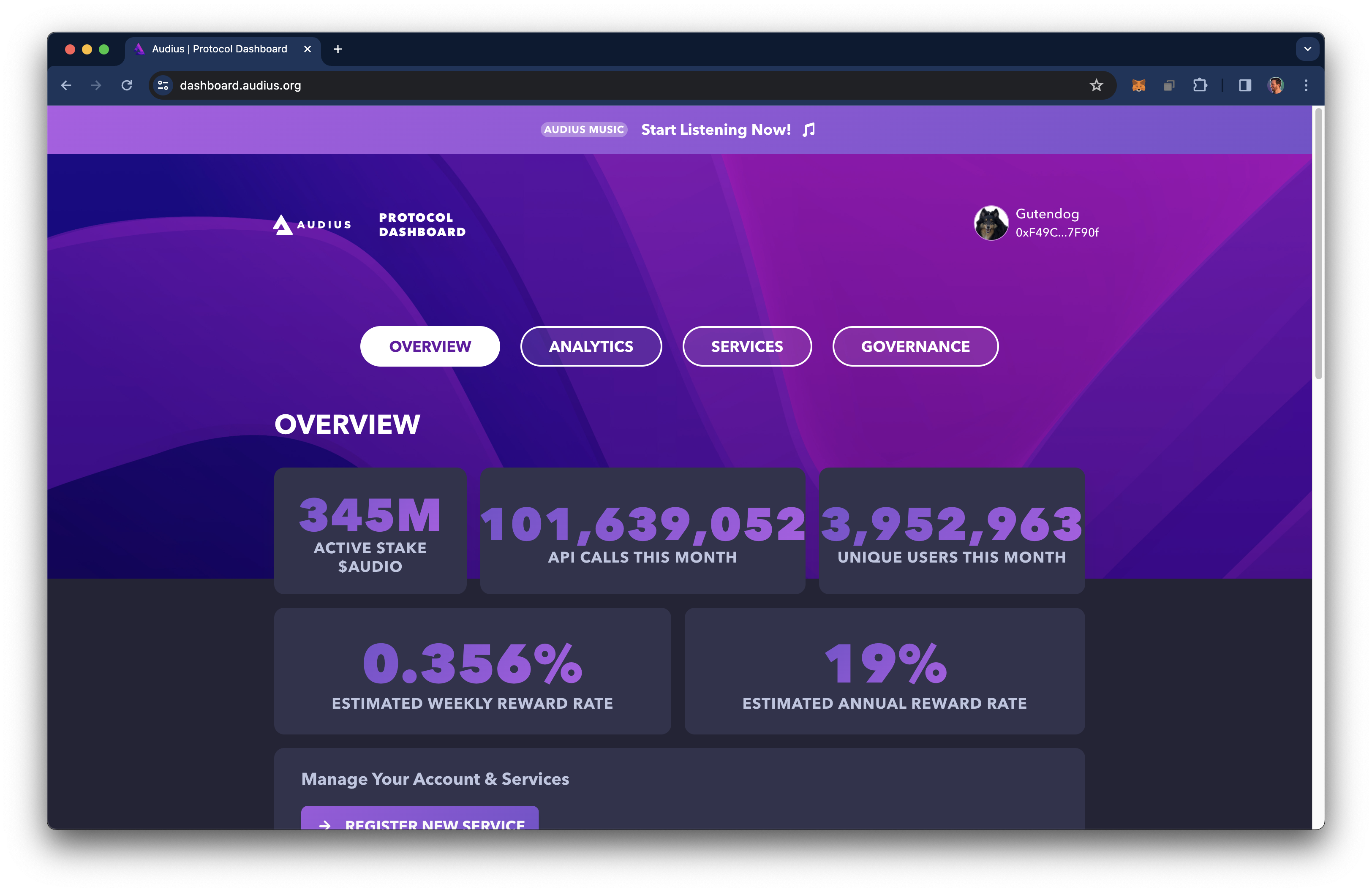
Link Audius Account to Protocol Dashboard
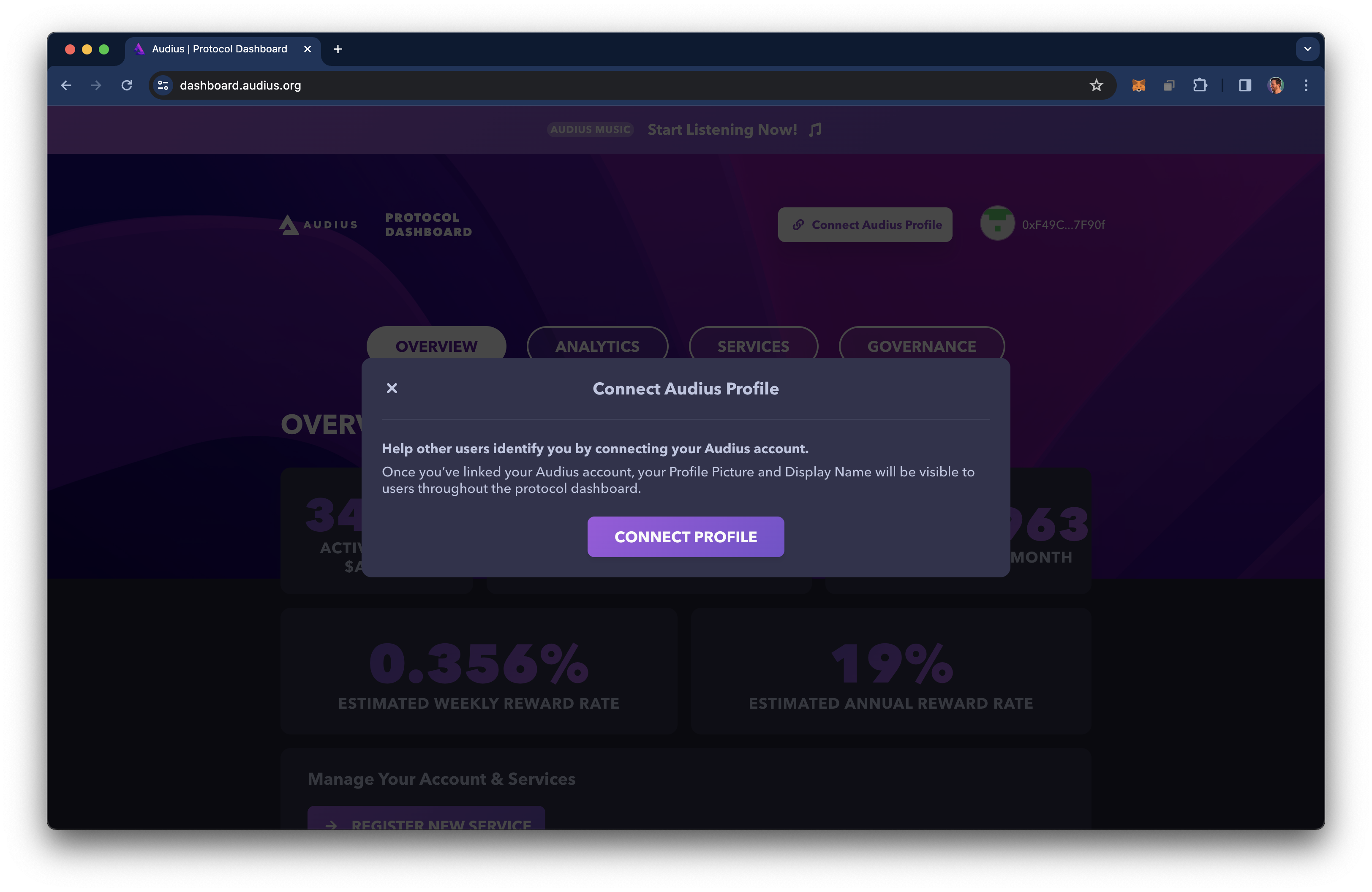
Help other users identify you by connecting your Audius account.
Once you've linked your Audius account, your Profile Picture and Display Name will be visible to users throughout the protocol dashboard.
Connect with MetaMask
To get started, open the Audius Protocol Dashboard in a web browser with the MetaMask extension installed and click the "Connect MetaMask" button in the upper right hand corner of the Dashboard.

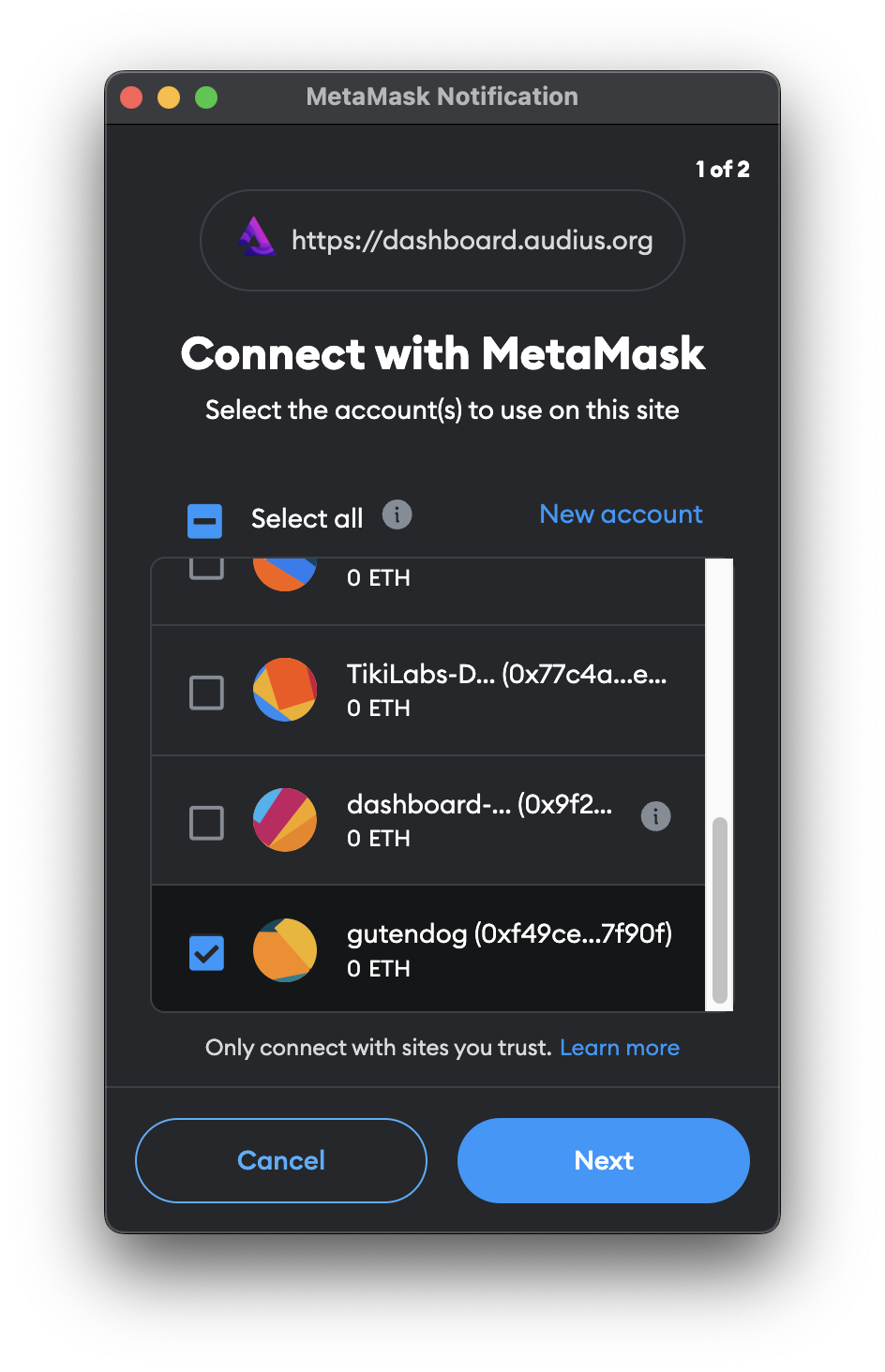
A MetaMask window will open and if there are multiple accounts associated to the MetaMask wallet, an account picker will be shown.
Be sure to select the Wallet and Account used when registering services or making delegations to the Audius Protocol.
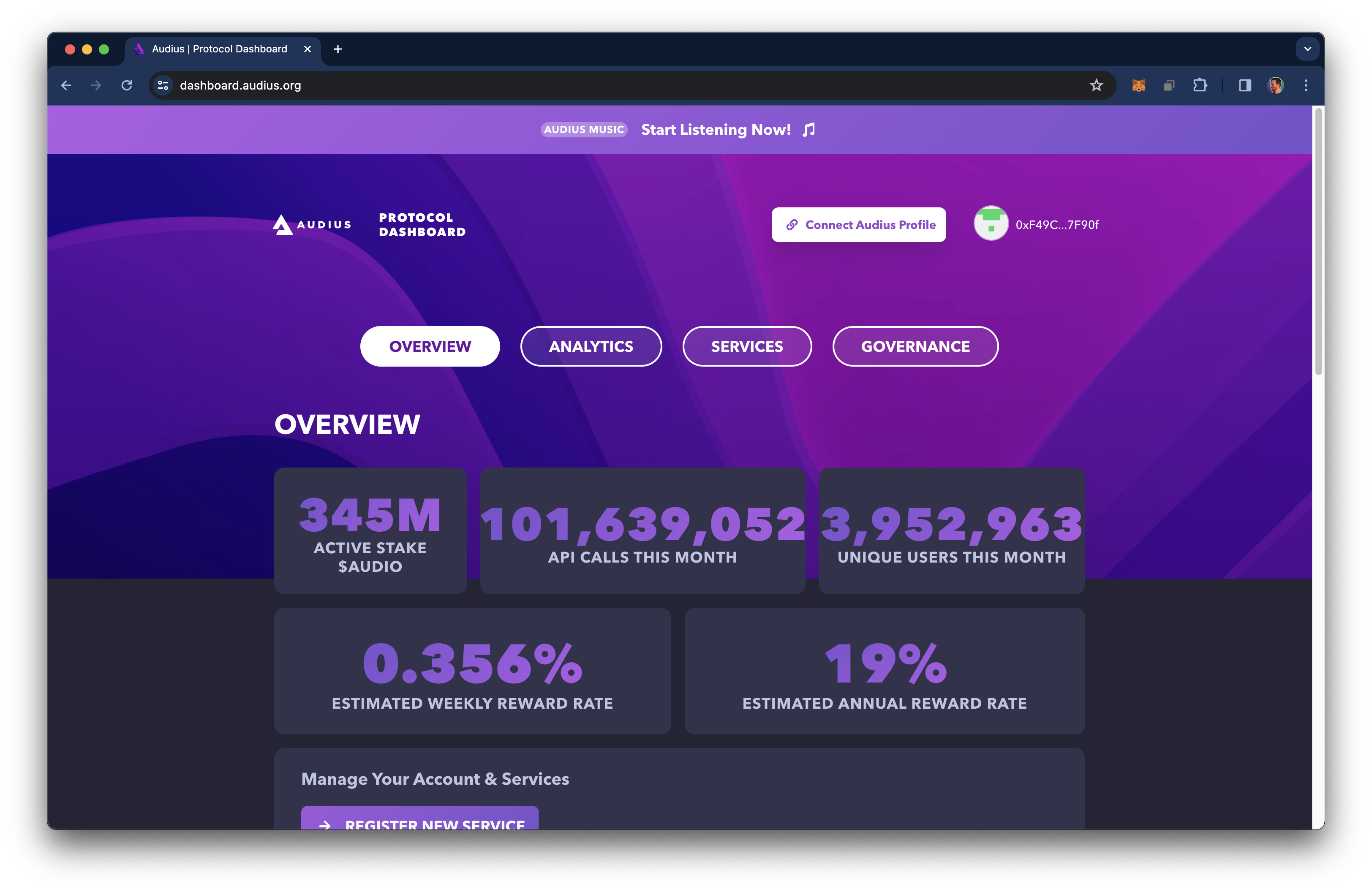
By default, a Gravatar style icon will be used to represent the wallet across the Dashboard.
Connect to Audius Profile
To connect your Audius profile to the Dashboard, click the "Connect Audius Profile" button and then "Connect Profile".

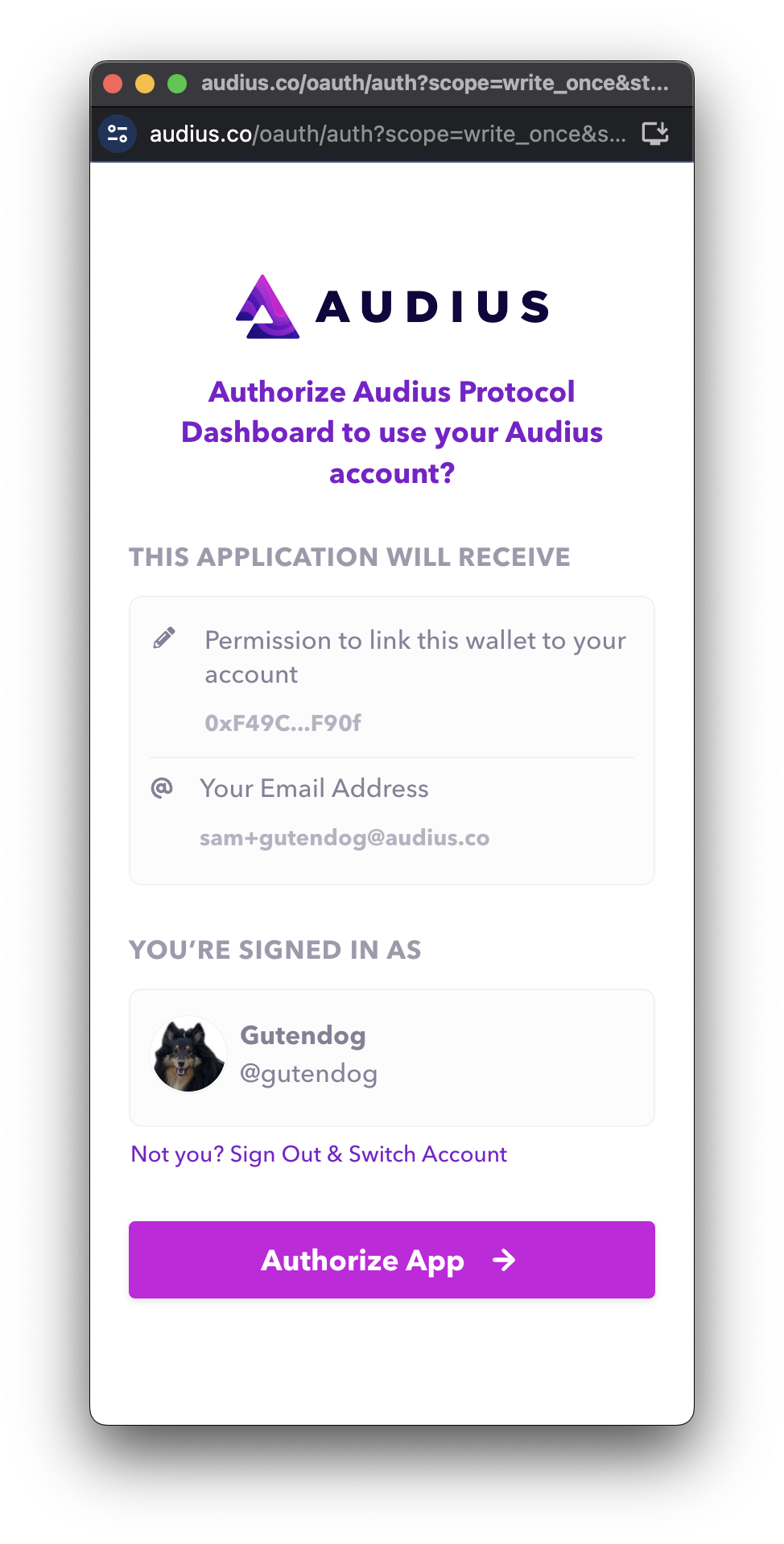
A popup form will appear, click the "Authorize App" button to connect the accounts.
If you are already signed in to an Audius account it will be chosen as the default. If you would like to use a different Audius account, be sure to sign out and sign in with the correct account before clicking "Authorize App".
If you are not currently signed in to an Audius account, you will be prompted to do so.
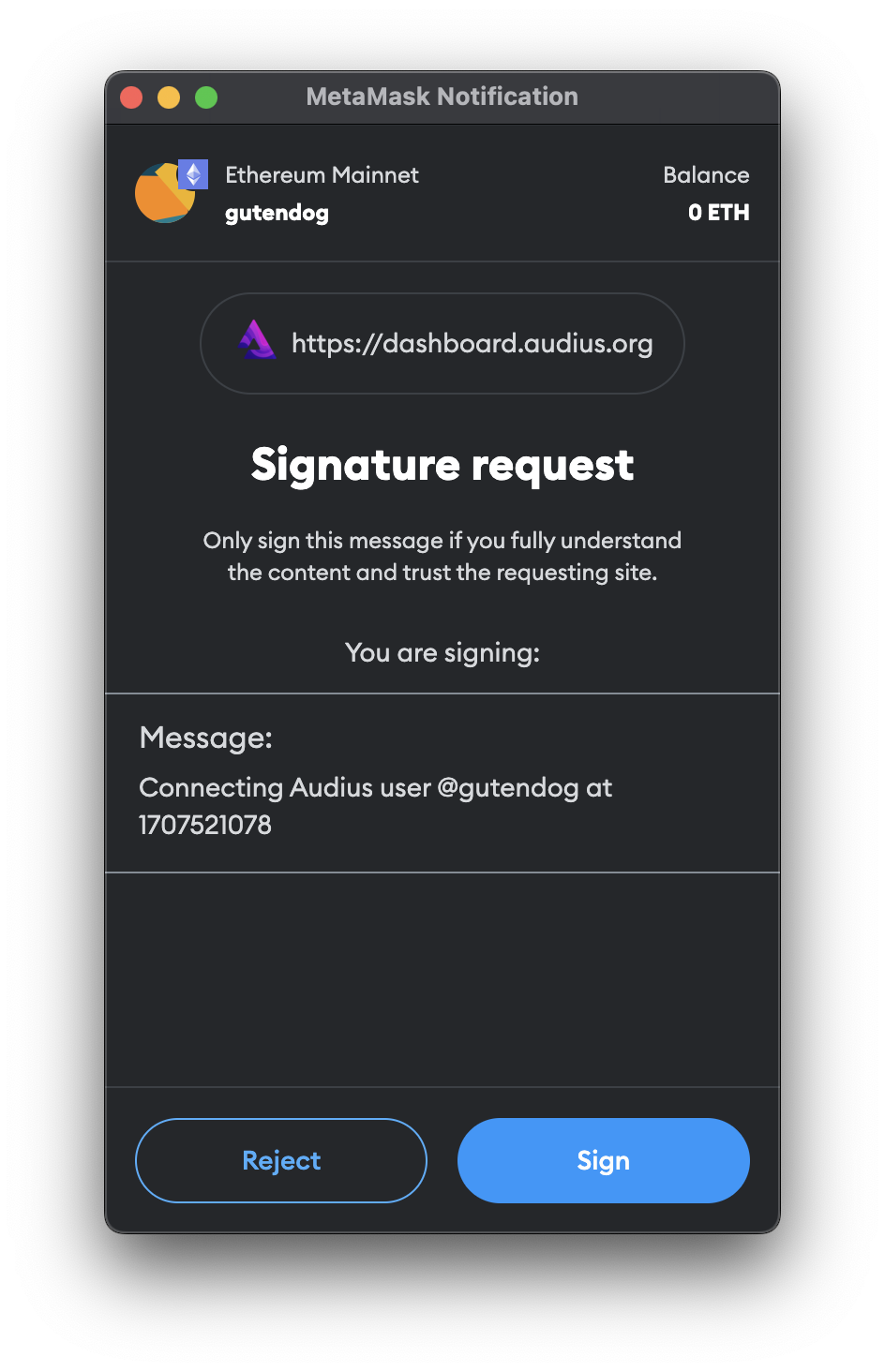
Finally, MetaMask will present a signature request to confirm the account connection. Sign this message to complete the link.
Complete! Now your Audius account profile image will be shown on the Audius Protocol Dashboard!